
protected
The Benefits of Keyword Research Software
Fri, 12/04/2020 - 09:11 — Alexis Wilke
You've heard it said that a team is only as good as its leader, right? In the world of computer systems, many times, a computer is only as good as its software.
If you do any marketing research or work for an online company, one of the best software you could ask for is a keyword finder. If your job focuses on marketing techniques and sale inquiries, keyword finders are the way to go.
Why? Let's discuss the most significant benefits these handy tools can provide for you!
1. They Help Narrow the Search Results
If you are searching for information about a subject ...
Docker, an advanced chroot utility
Fri, 11/29/2019 - 19:09 — Alexis Wilke
SECURITY WARNING
Before installing Docker and containers with services on your Linux system, make sure to read and understand the risks as mentioned on this Docker and iptables page. Especially, Docker will make all your containers visible to the entire world through your Internet connection. This is great if you want to indeed share that service with the rest of the world, it's very dangerous if you are working on that container service since it could have security issues that need patching and such. Docker documents a way to prevent that behavior by adding the following rule to your firewall:
iptables -I DOCKER-USER -i eth0 ! -s 192.168.1.0/24 -j DROP
This means that unless the IP address matches 192.168.1.0/24, the access is refused. The `eth0` interface name should be replaced with the interface name you use as the external ethernet connection. During development, you should always have such a rule.
That has not worked at all for me because my local network includes many other computers on my LAN and this rule blocks them all. So really not a useful idea.
Instead, I created my own entries based on some other characteristics. That includes the following lines in my firewall file:
*filter
:DOCKER-USER - [0:0]

-A DOCKER-USER -j early_forward
-A DOCKER-USER -i eno1 -p tcp -m conntrack --ctorigdstport 80 --ctdir ORIGINAL -j DROP
-A DOCKER-USER -i eno1 -p tcp -m conntrack --ctorigdstport 8080 --ctdir ORIGINAL -j DROP
-A DOCKER-USER -i eno1 -p tcp -m conntrack --ctorigdstport 8081 --ctdir ORIGINAL -j DROP
My early_forward allows my LAN to continue to work. These are my firewall rules that allow my LAN computers to have their traffic forwarded as expected.
Then I have three rules that block port 80, 8080, and 8081 from Docker.
Docker will add new rules that will appear after (albeit not within the DOCKER-USER list) and will open ports for whatever necessary service you install in your Dockers.
Note that the only ports you have to block are ports that Docker will share and that you have otherwise open on your main server. If Docker opens port 5000 and your firewall does not allow connections to port 5000 from the outside, then you're already safe. On my end I have Apache running so as a result I block quite usual HTTP ports from Docker.
Docker
As we are helping various customers, we encounter new technologies.
In the old days, we used chroot to create a separate environment where you could have your own installation and prevent the software from within that environment access to everything on your computer. This is particularly useful for publicly facing services liek Apache, Bind, etc.
Protected Node Rules Support
The following features are available only when installing the Rules extension of protected nodes. This extension requires the thrid party Rules extension for Drupal.
Protected Node Rules Conditions
When handling a Node, it is possible to check whether the node is currently protected or locked.
Protected Nodes
A node is said protected when the node was protected by a password using the Protected node module.
Whether the user can view that node is irrevelant in this case. Only the fact that the node requires a password to be viewed is what this condition checks.
Locked Nodes
A ...
Protected Node Views Support
The Protected Nodes offers some additional supports to views 2.x and 3.x in Drupal 6.x.
The additional support includes fields, filters, and sort capabilities that are added to the Node type. The join between the regular node and the protected node data is the node identifier (nid). This means the revision identifier is ignored.
-
Password last changed
This value is the date when the password was last modified. You can display this date, filter using the date, and sort by date.
-
Node is protected
This value is a yes/no value (i.e. Boolean) which can be ...
Protected Node per Node Type Settings
Node Type extension
The Protected Node module adds a field set to the Node Type form that you edit under:
Administer » Content management » Content types
These additions are explained in detail below.
The main reason for adding this feature is to avoid seeing the field set on all the node edit forms. With this feature you can hide the form on all the node types that you will never protect with a password.
Protected mode for nodes of this type
This option let you choose how this node type handles the Protected Node capability.
Never protected
This means this node ...
Protected Node Password Fork Feature
Password Fork
The new module allows for a password fork.
This means you can send your users to one specific page, and tell them about a password to use on that one page. Depending on the password, they will be sent to one of several nodes.
This works in a very similar way as the other password form, except that there is no specific destination, and the users need to know any one of the passwords.
The feature uses a specific URL defined as follow:
/protected-nodes?protected_pages=<nid1>,<nid2>,...&back=<url>
- protected_pages=<nid1>,<nid2>,...
This
Protected Node Password Form
Protected Node Password Form
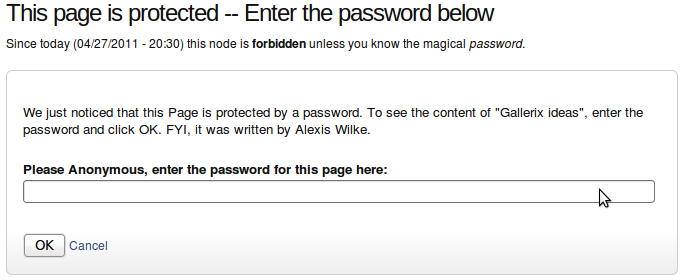 Once a node is protected, users who cannot bypass the password are sent to the password form (see image on the side.)
The password form is very simple. It includes one field for users to enter the node password and an OK button.
When the browser of the user sent us a referrer, then the Protected node module adds a Cancel link back to that referrer. Using the global settings, you can force a Cancel link to always be there. When no referrer is available, the Cancel link will send your users to your home page.
The title, information, description and title over the
Protected Node Password Field set
Once installed and properly configured, the Protected node module adds a field set in the node edit form (assuming the user has the corresponding permission: "edit any password" or "edit password <node type>".)
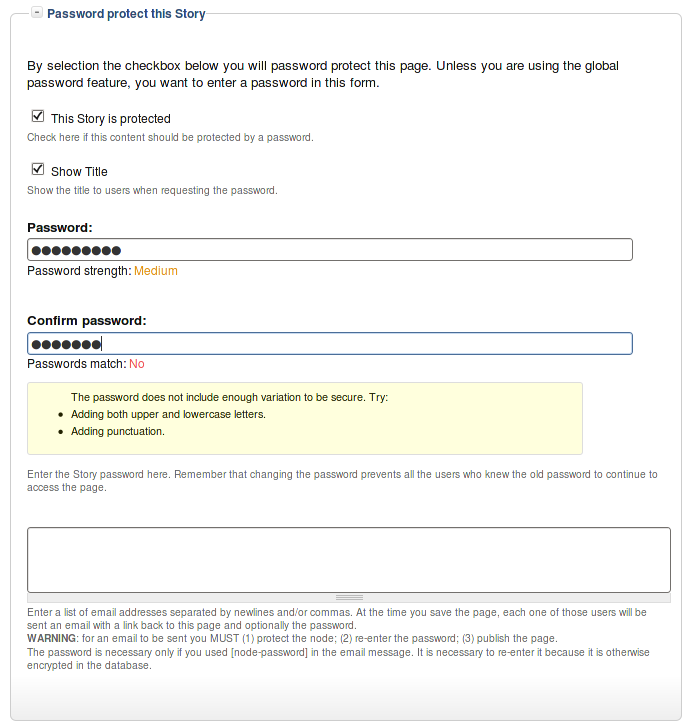 This field set includes two flags, a password, and emails (optional.)
By default, the field set is closed unless you selected protected by default. Whether the field set should be opened or closed can selected in the node type settings.
The <node type> is protected
The first check box is used to password
Protected Node Global Settings
The protected node module has global settings found under:
Administer » Site configuration » Protected node
Protected node Statistics
The page starts with statistics to let you know how pages are protected on your website. All the counts include published and unpublished content.
- Total nodes — the total number of nodes on your website
- Unprotected nodes — number of nodes that do not have a password
-
Protected nodes — number of nodes that are current protected by a password
- Showing title — number of nodes showing their ...
Protected Node Permissions
The Protected Node module adds permissions to define who has the right to make use of the password feature.
- access protected content
This is the basic access permission for users. Users who are given this permission can access a protected node as usual, except that they need to enter the password to handle the node.
This is true whether they want to view, edit, delete the node.
- bypass password protection
Users with the bypass permission can access all nodes that are protected without having to enter the passwords. This is very handy for website administrators and
