
area
US Zip Code overlay on Google Maps
Wed, 01/16/2013 - 19:21 — Alexis Wilke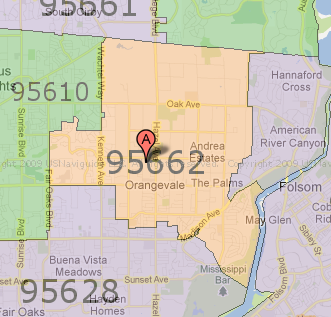
Today I had a need to find out a set of zip codes that would match a delivery area for one of my customers. I was wondering how could I find out all the zip codes over a given area...
Searching a little bit I found a website named zipmap which actually does just that. The entire US is covered and you can navigate it just like you navigate a regular Google Map view. Very practical!
You can easily move around, zoom in and out, and you even see the map with street names in the background.
Protected Node Password Field set
Once installed and properly configured, the Protected node module adds a field set in the node edit form (assuming the user has the corresponding permission: "edit any password" or "edit password <node type>".)
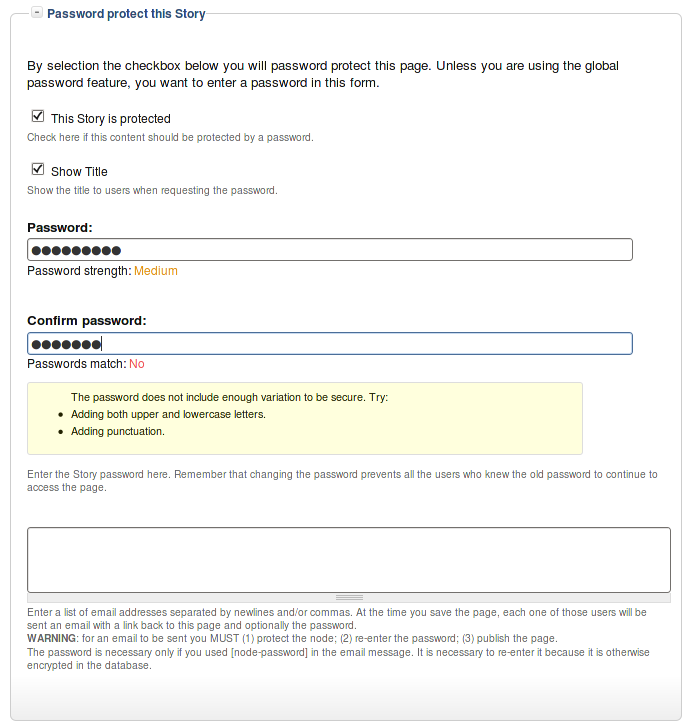 This field set includes two flags, a password, and emails (optional.)
By default, the field set is closed unless you selected protected by default. Whether the field set should be opened or closed can selected in the node type settings.
The <node type> is protected
The first check box is used to password
Protected Node Global Settings
The protected node module has global settings found under:
Administer » Site configuration » Protected node
Protected node Statistics
The page starts with statistics to let you know how pages are protected on your website. All the counts include published and unpublished content.
- Total nodes — the total number of nodes on your website
- Unprotected nodes — number of nodes that do not have a password
-
Protected nodes — number of nodes that are current protected by a password
- Showing title — number of nodes showing their ...
To Do Tokens
The To Do module supports tokens that can be retrieved using the Token module.
The available tokens will generally appear in the list of tokens as found under a text area.
The raw tokens are no representing any security risk. They simply return the raw value instead of a more human representation of the value. For example, when the priority is "High", the raw value is 2.
Table of Contents Known Issues
Various known issues with the Table of Contents module.
Teaser appear, FCKeditor accentuated letters, Back to top arrow, Filters interaction (JavaScript removal,) headers numbering, double numbering...
Handling of Pop-up Windows by SimpleMenu
Feature
By default, SimpleMenu is not shown on pop-up windows. There is a flag in the SimpleMenu settings that can be unchecked to avoid this side effect. The pop-up capability is often detected when you open a new tab from the current window. It will depend on the browser and the link being clicked1.
Quick Fix
When the menu is only used by the administrators, it is possible to simply open a new tab and copy and paste the URL from the existing window with the missing menu to the ...
- 1. We are trying to ameliorate the code, but it is not easy to make it work properly 100% of the time.
To Do List Global Settings
Global Settings
Global settings are found under Administer » Site configuration » To do list (admin/settings/to_do).
Only To Do List administrators can edit the Global Settings.
InsertNode (The module —)
The following pages are the official documentation of the InsertNode module available on Drupal.
This module is a filter used to insert a node in another. Version 5.x is only being maintained. Version 6.x still evolves as time passes. It is already pretty powerful!
Since this is a filter, you can use it to insert a node in any text area that supports filters by including the InsertNode filter in it.
It works by using the simple syntax:
[node:<node name or nid or *1
- 1. The asterisk can be used to reference the current ...
Get URL
Load the specified URL in the specified target window.
When the target is set as "_level0", the current SWF file is replaced by the file specified in the f_url field. The name in the f_url field should be a proper SWF file or the area will simply become black.
When the target is set as "_level1", something special is supposed to happen. I still don't know what it is...
Also the effect of _level1 + an empty URL is ... (to remove level1?)
DefineBinaryData
The DefineBinaryData tag is used to save any arbitrary user defined binary data in an SWF movie. The Flash player itself ignores that data. The size of the data is not specifically limited.
The f_data_id is this object identifier. The identifier is the same type as any identifier (like a sprite identifier.) It is used in ActionScripts to reference the data.
The f_reversed area is 32 bits and it must be set to zero in version 9.
