
feature
3 Types of Software Every Business Needs
Fri, 01/28/2022 - 19:17 — Alexis WilkeAre you struggling to stay on top of everything in your business?
You don't need to handle everything all alone — there's software specifically designed to help your business thrive without you having to put in more hours. The right software will save you time by keeping everything organized and ready to go.
Learn about the 3 types of software to keep your business running as it should while you focus on more important things.

What Type of Business Do You Have?
As we go through each type, understand that the software your business needs depends mainly ...
HP Color LaserJet Pro Multifunction M479fdn Laser Printer
Tue, 05/12/2020 - 18:25 — Alexis Wilke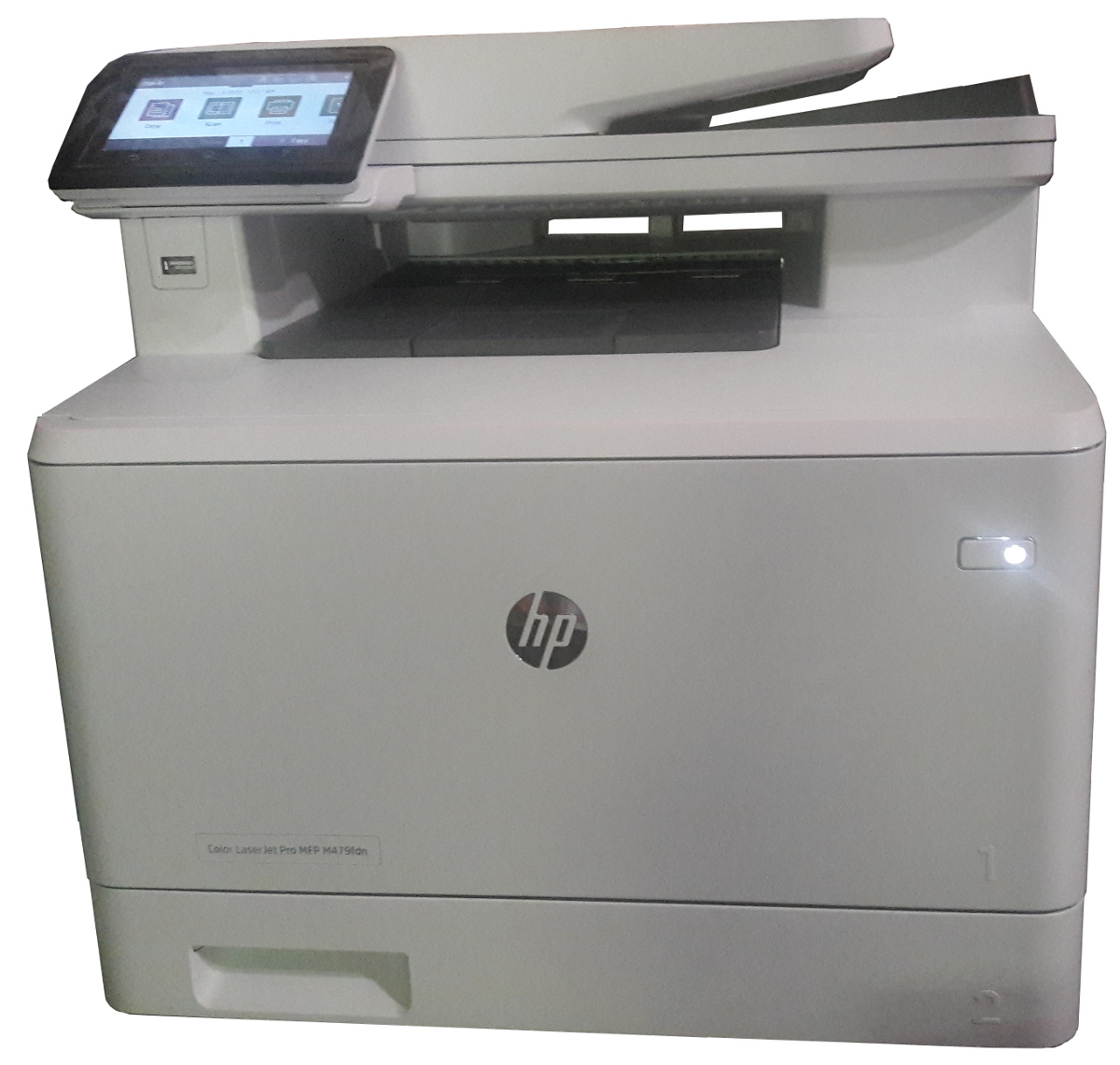
Click to get this printer on Amazon.com where I'm an affiliate.
Not too long ago, I ordered a new color drump for my old printer and replaced it. Not very long after that the print simply decided to not print at all anymore. Literally, it would pass the page through just fine but it had nothing on the page. I know it was working since it was printin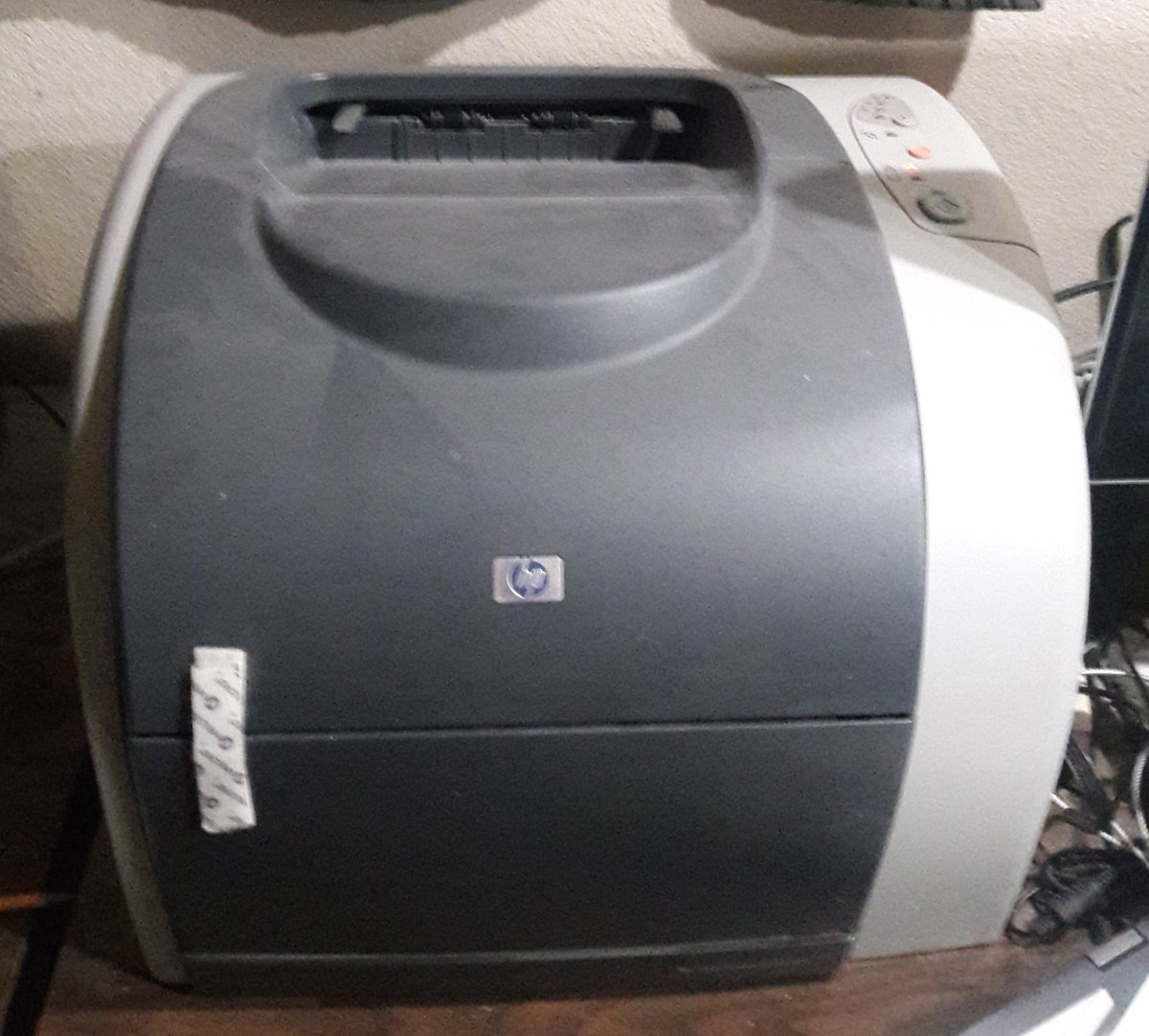 g just fine the day before and there was still plenty of black ink (it would have had the light on if the black was not enough.)
I'm thinking that may have been a ploy by the manufacturer to push me to buy a new printer...
In any event, ...
How small are computers getting?
Wed, 03/18/2020 - 20:37 — Alexis Wilke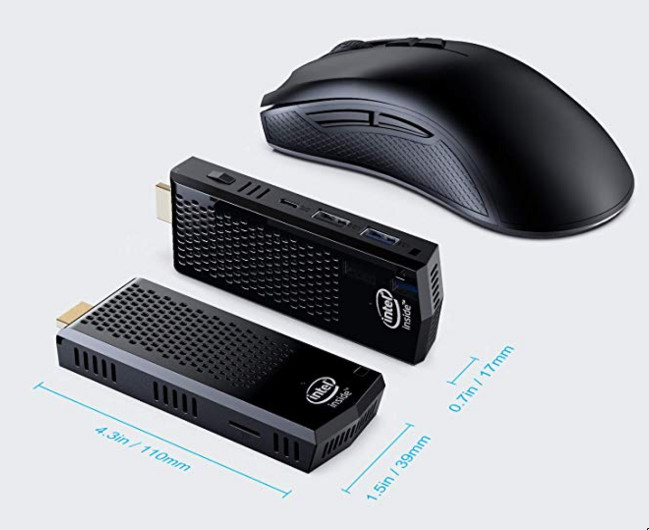
Click on picture to see on Amazon.com (which I'm an affiliate of).
Computer Stick
Looking at Mini Computers, I found this Fanless Mini PC based on the Intel Atom Z8350 processor by SmallRT. The picture includes a mouse to give you an idea of the size of that thing. It's tiny! Maybe not what you want, but you can already do a lot with that little one.
The connector on the left side is an HDMI plug which spits out 4K of video graphics. It's just totally amazing to me. Of course, we had the Pi3 and now we have the Pi4... but those are computers for hackers. Here we're ...
Avoid automatic translation of Facebook posts
Sun, 12/31/2017 - 16:50 — Alexis WilkeOnce more today my French friend's post was translated.
French is my mother tongue so I sure don't need the automatic translation for French on my Facebook wall. I also like to read a couple other languages, even if I'm not at the best level I only need a little help with a few words here and there, so I like to have those in the original language to improve. The more you read a language the more you learn about it. Same if you live in a country and start talking with people there. You're going to learn a lot more that way than staying at home and not talking to anyone any ...
Getting Rid of Deactivated Facebook Friends
Thu, 12/21/2017 - 14:25 — Alexis WilkeLast updated in Dec 31, 2017 as many things have changed.
Not only that, I also noticed that "dead" accounts are not always really dead.
Read below to learn more.
I was slowly nearing 5,000 friends when all of a sudden I had 5,089!
Wondering what was happening, a post on the Blackhat World forum caught my eye as someone mentioned the fact that he had 5,700 friends. The answer was that deactivated friends do count against your 5,000 friends limit. They are counted as part of your friends even though they do not have an account anymore and they don't get automatically removed ...
Protected Node Rules Support
The following features are available only when installing the Rules extension of protected nodes. This extension requires the thrid party Rules extension for Drupal.
Protected Node Rules Conditions
When handling a Node, it is possible to check whether the node is currently protected or locked.
Protected Nodes
A node is said protected when the node was protected by a password using the Protected node module.
Whether the user can view that node is irrevelant in this case. Only the fact that the node requires a password to be viewed is what this condition checks.
Locked Nodes
A ...
CSS3 media queries
Sat, 01/14/2012 - 22:26 — Alexis WilkeCSS is improving with the introduction of CSS3.
Contrary to the previous version, CSS3 supports selections that are very advanced, offering capabilities close to what you could write in JavaScript.
Today I wanted to talk about the Media Queries because that can be used to very much optimize the list of links used to load your CSS data.
In HTML, you can use a <link ...> to add a CSS file to your page.
<link rel="stylesheet" type="text/css" href="style.css" />
In this case, the file style.css will always be loaded, whatever the media being used.
Simplemenu Settings
Menu Settings
Menu
Select the menu to be displayed as the Simplemenu. By default, we display the Navigation Menu which makes the most sense for administrator (as the Simplemenu was primarily created for administrators wanting to quickly go to all administration pages.)
Theme
Select a theme to display your Simplemenu items and dropdowns. The default is called original.
The themes reside in the module sub-folder named themes. Each theme is defined in a specific directory named after the theme. That name is what appears in the dropdown in the settings.
It is possible to add new themes as
Simplemenu Upgrade Path
Version 7.x
Version 7.x-1.x-dev is a starting point... It is not complete, although it shows you a functional Management menu as a dropdown. More to come as time allows... See issue [#791664] for more info.
Version 6.x
Version 6.x-1.13 fixes the vertical menu problem which had to do with CSS caching getting lost.
Version 6.x-1.10 to 6.x-1.12 fixes the non-called theme() function versus the other sub-modules that have callbacks through the theme() calls. However, we really need to have callbacks instead. Added horizontal and vertical themes. Attempts to fix to the vertical menu problem
Protected Node per Node Type Settings
Node Type extension
The Protected Node module adds a field set to the Node Type form that you edit under:
Administer » Content management » Content types
These additions are explained in detail below.
The main reason for adding this feature is to avoid seeing the field set on all the node edit forms. With this feature you can hide the form on all the node types that you will never protect with a password.
Protected mode for nodes of this type
This option let you choose how this node type handles the Protected Node capability.
Never protected
This means this node ...
